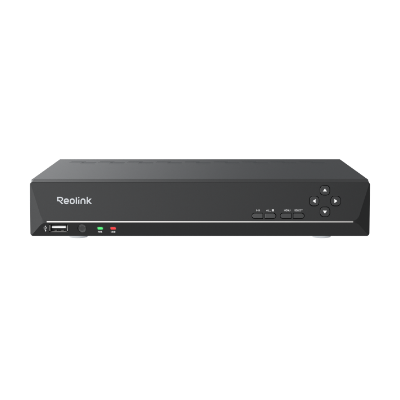
RLN8-410
Overview
Specs
Accessories
Review
Comparison
FAQs
RLN8-410

12-Channel PoE NVR with 2TB HDD for 24/7 Continuous Recording

12-Channel PoE NVR for 24/7 Continuous Recording, without HDD Pre-installed

RLN8-410 (2TB HDD)

Key Features

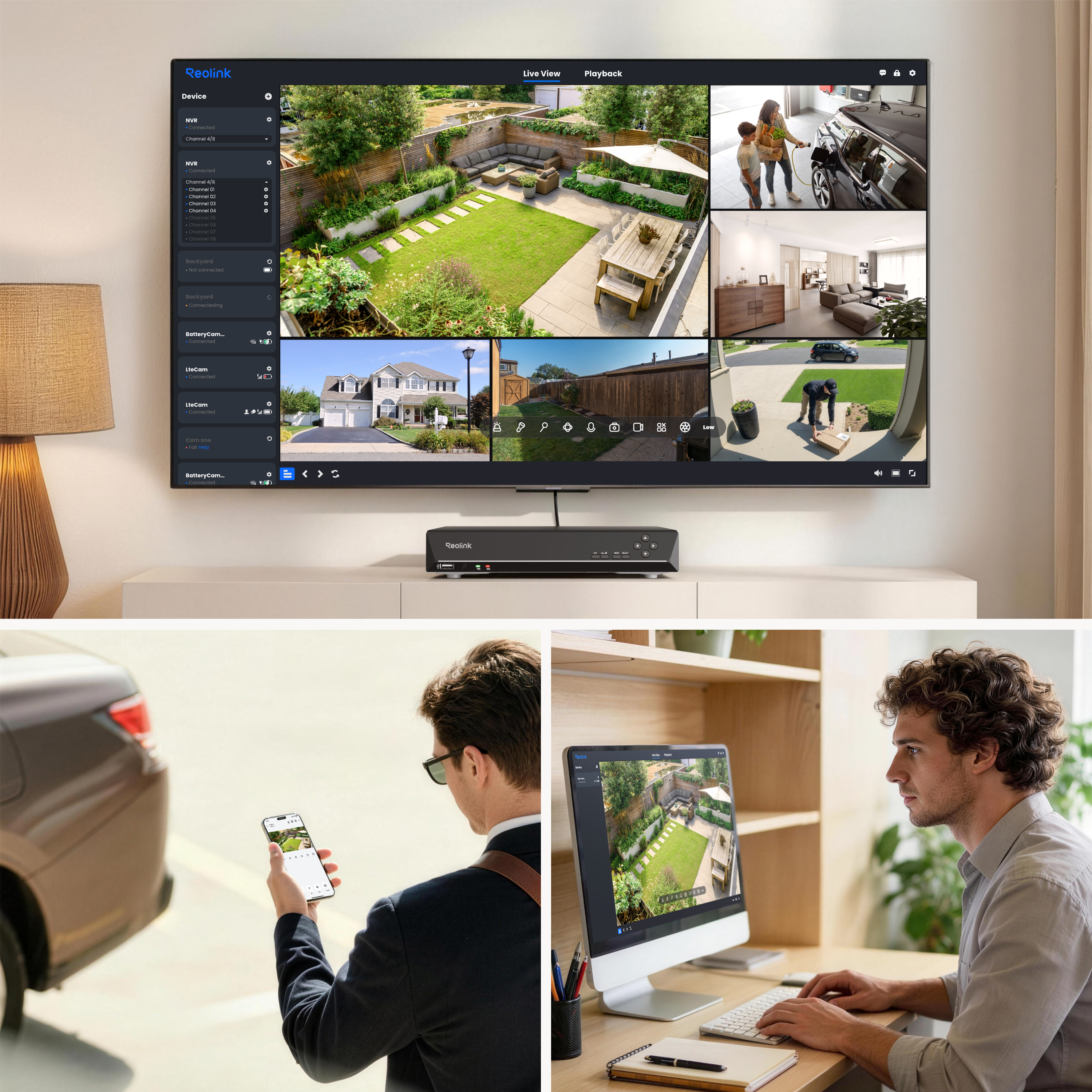
Versatile Preview

Locally preview or remotely access via the App/Client.
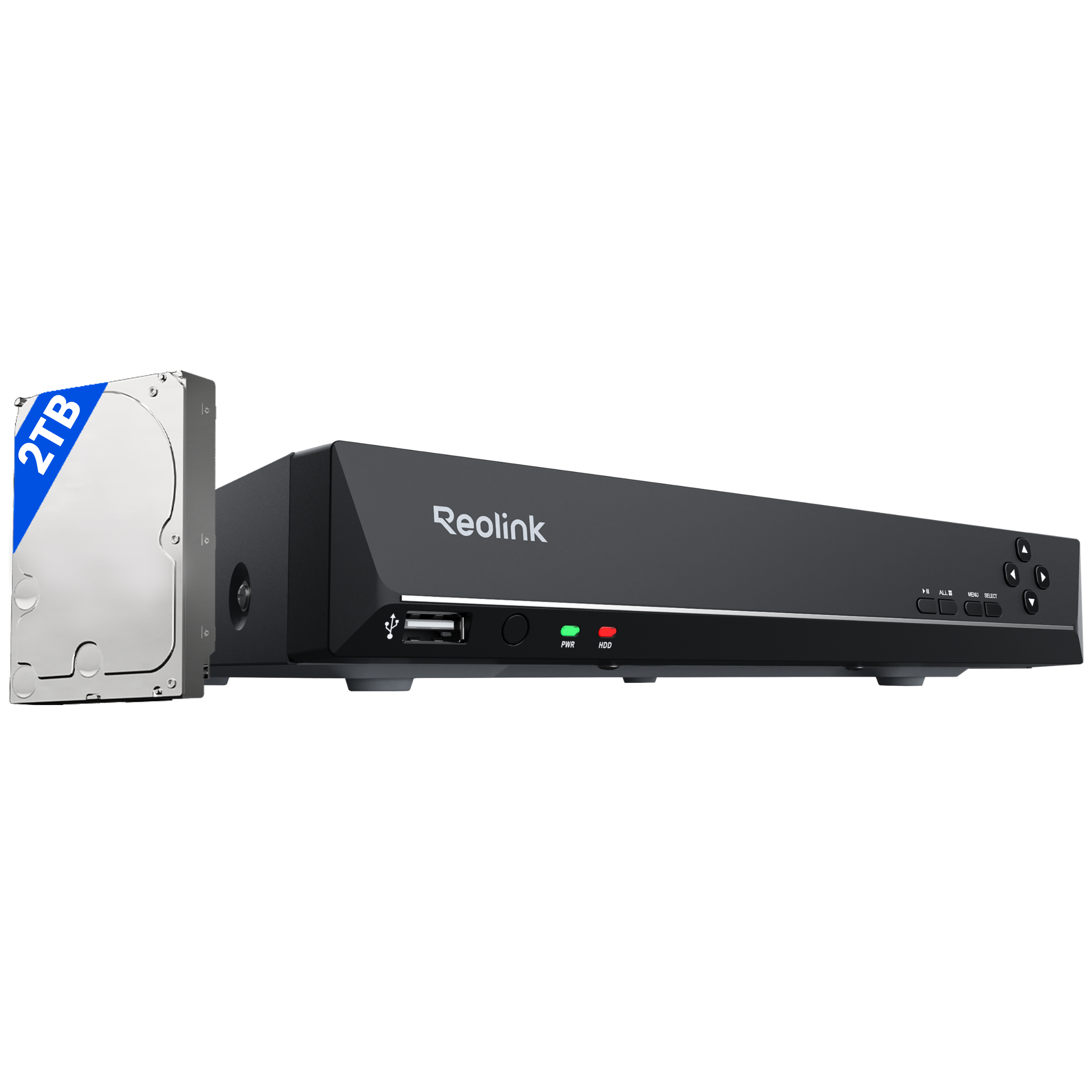
Local Storage

Built-in 2TB HDD, expandable to max. 16TB HDD.

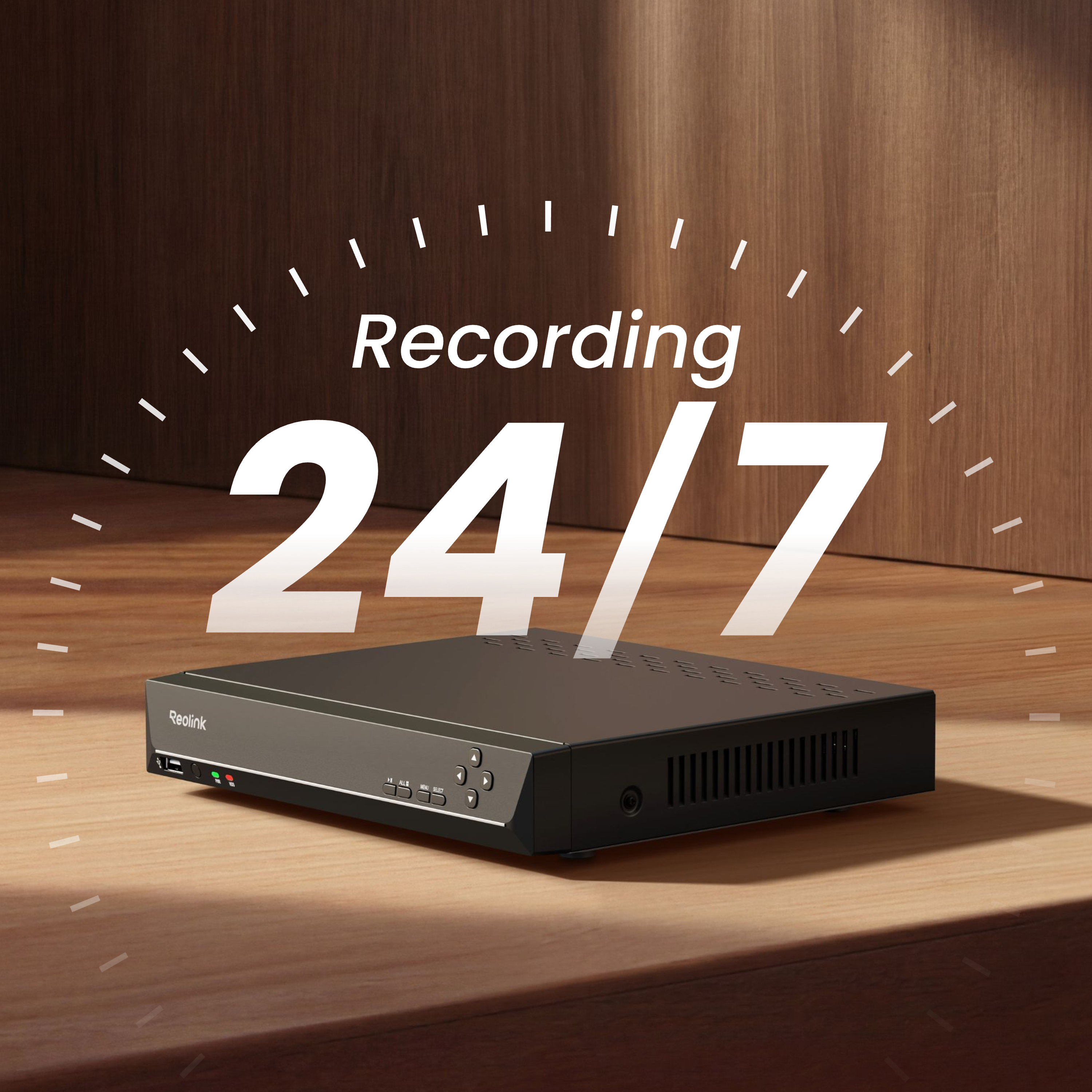
24/7 Continuous Recording

Stored locally for permanent accessibility.

16MP Ultra HD

Sharp & stunning frames of both live feed and playback.

Plug & Play

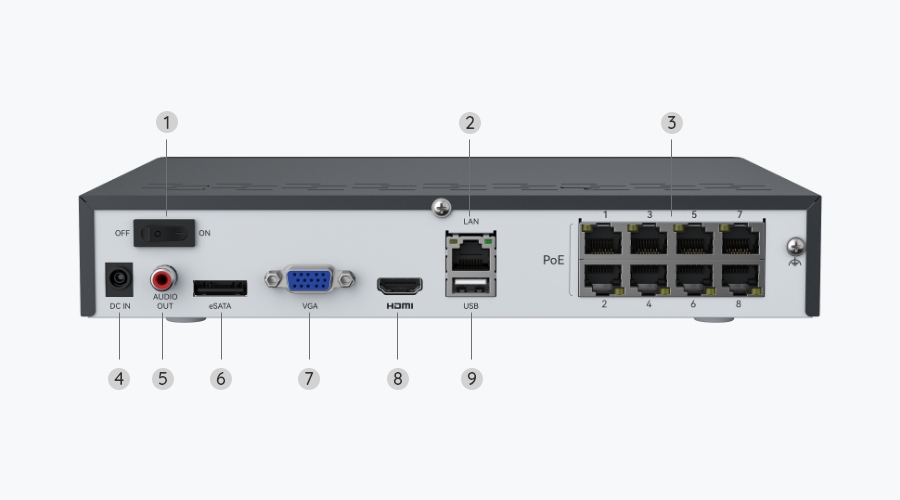
Convenient PoE connections for both power and network.

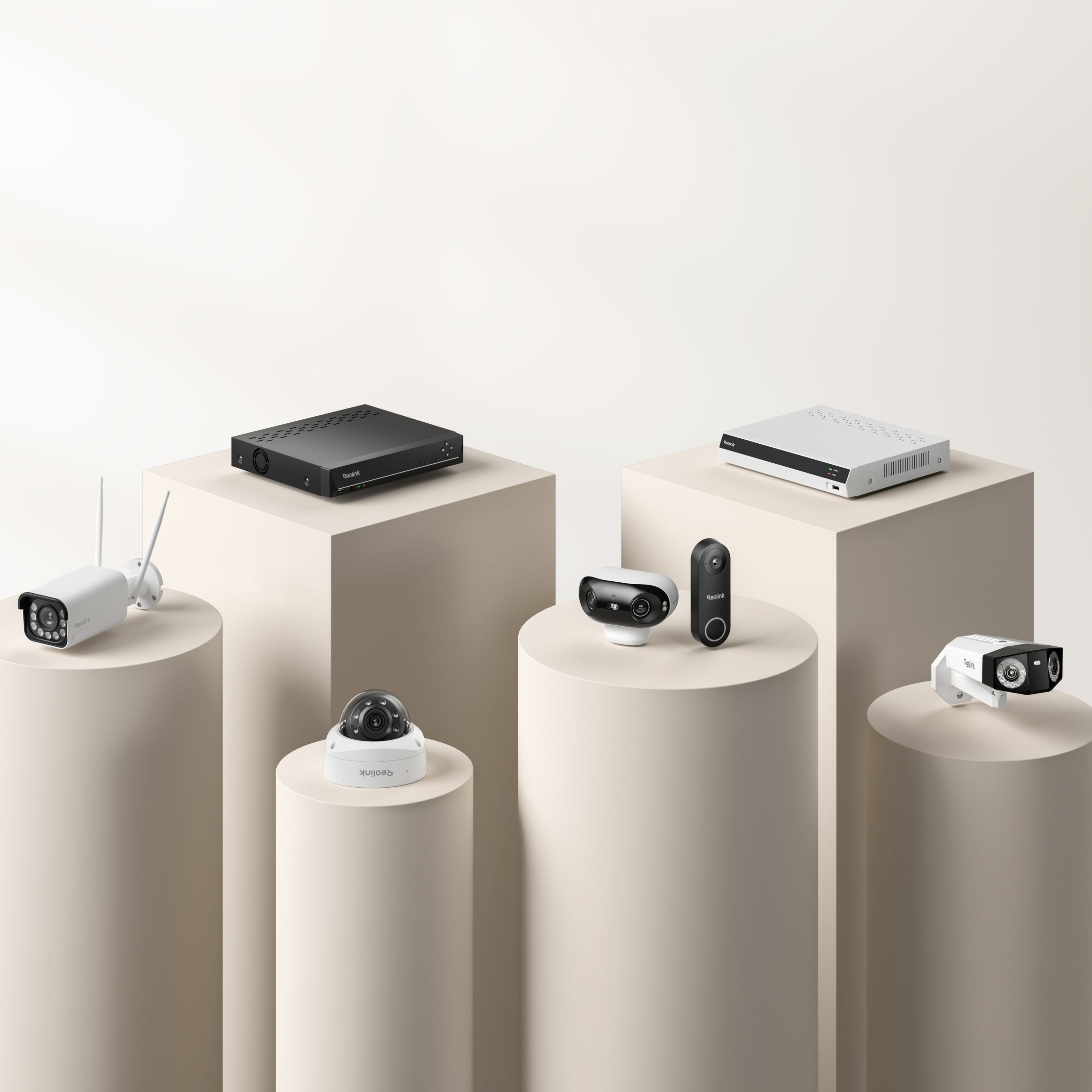
Extension & Compatibility

Supports all PoE cameras, plug-in Wi-Fi cameras, and battery Wi-Fi cameras.
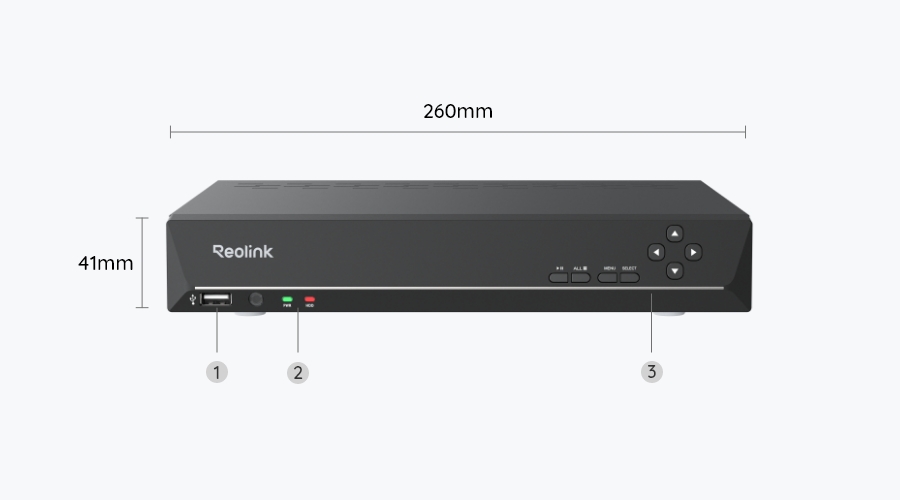
What’s in the Box & Setup Guide (with Video)

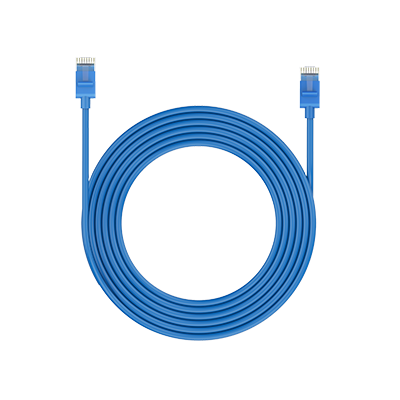
  • 1m Network Cable ×1
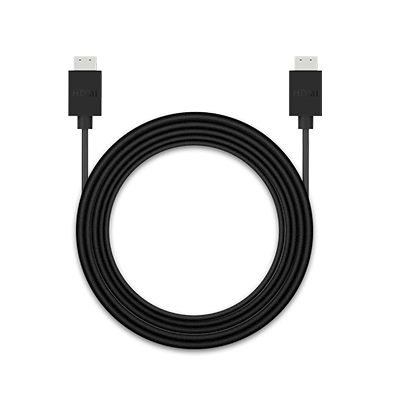
  • HDMI Cable ×1
  • NVR Power Adapter ×1
  • RLN8-410 ×1
  • USB Mouse ×1

FAQs

Functions
Does the NVR support the person/vehicle/animal detection of my Reolink cameras?
If you want to buy a new one:
Yes, the currently on-sale NVRs support the cameras' smart person/vehicle/animal detection.
If you already have one:
RLN8-410 with the newest hardware versions (H3MB18/N2MB02/N3MB01/N7MB01) supports the cameras' smart person/vehicle detection. Check Hardware Version of Reolink NVRs for detailed information.
How to expand the NVR storage capacity?
You can add HDDs for the NVR via SATA ports.
The currently on-sale RLN8-410 supports Max. 16TB in total: Max. 8TB via SATA, Max. 8TB via eSATA.
Can I add a PoE switch?
Yes, there are 3 methods.
Method 1: Plug the PoE NVR and the PoE switch to the same router via Ethernet cable. Then plug the PoE cameras into the PoE switch or PoE NVR.
Method 2: Plug the PoE switch into the PoE NVR, and then connect the NVR LAN port to the router.
Method 3: Plug the PoE switch to your router, then connect the NVR LAN port to your PoE switch.
For more information, please refer to How to Connect PoE Switch Router and PoE NVR
Note: By adding PoE switches, you will not expand the number of cameras supported by the NVR, since its video channels are immutable.
Can I connect the NVR to the router wirelessly?
No, the NVR can only connect to the router via an ethernet cable.
Can I connect the NVR to the third-party cameras?
It's not suggested to do so. Compatibility issues may occur with third-party cameras. Please contact our support team if you have any concerns about protocols.
Why can't I find the Talk button for two-way audio on my Reolink App/Client when my camera, which supports this function, is connected to the NVR?
Before using this function, please check if you have updated the firmware on your NVR to the latest version. Here is a step-by-step instruction on how to upgrade it: https://support.reolink.com/articles/900004568363-Reolink-Firmware-Update-Guide/#h_01J5SBY58BJTK30SEMQWTMSETM
How many wired IP cameras (including PoE & plug-in Wi-Fi cameras) does this NVR support at most?
The NVR supports 12 channels, allowing a maximum of 12 cameras. It can support up to 8 wired IP cameras (including PoE & plug-in Wi-Fi cameras) .
Please note that a Reolink dual-lens camera occupies two video channels.
How many battery-powered Wi-Fi cameras does this NVR support at most?
Only the RLN8-410 with hardware N7MB01 supports connecting battery-powered Wi-Fi cameras, with a maximum of 12. The number of battery-powered Wi-Fi cameras that can be connected is 12 minus the number of wired IPCs. For more information, please refer to Introduction to Hardware Versions of Reolink NVRs
  • 30-Day Money Back Guarantee
    30-Day Money Back Guarantee
  • Free Shipping on All Orders
    Free Shipping on All Orders
  • 2-Year Limited Warranty.
    2-Year Limited Warranty.
  • 24/6 Online Support 1-on-1
    24/6 Online Support 1-on-1